AI Research Agent for Zotero
BibGenie is a Zotero AI plugin for reading papers, discovering research, and organizing your library. Follow citations in AI answers back to the sources.
Trusted by researchers & students from leading universities worldwide


Use AI without leaving Zotero
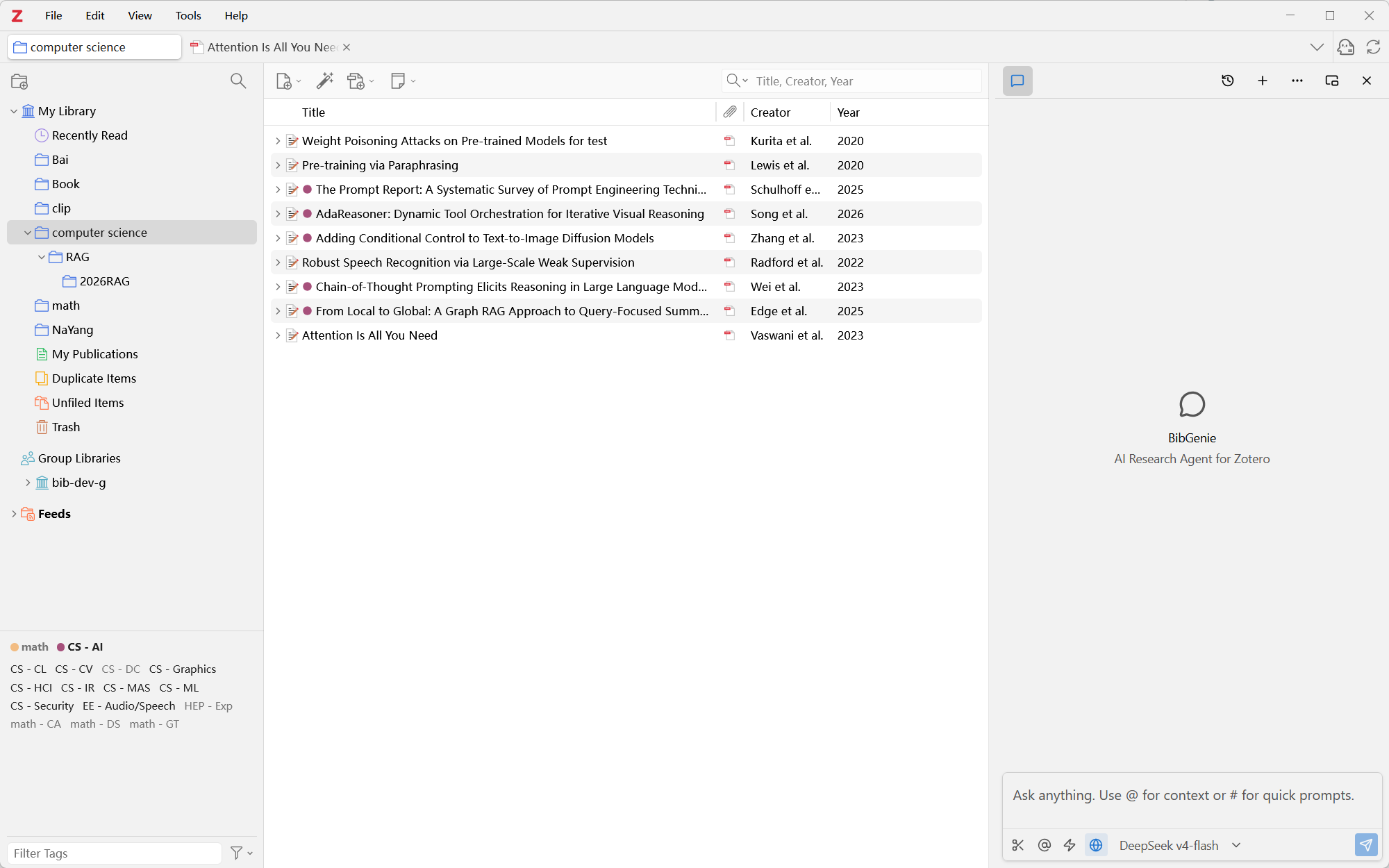
BibGenie lives in Zotero’s side panel and stays with you as you move between the Library and Reader. It can use the active item and current page as context, so you can ask about what’s in front of you without moving your work to a separate AI app.
Read the setup guide- Stays docked in Zotero's right sidebar
- Automatically tracks active PDF and current page
- Zero context-switching or manual file uploads
Chat with your Zotero library
Type @ or use Add Context to add items, notes, tags, and collections. Or choose Add to Chat from the Library or Reader to bring in selected items, attachments, annotations, PDF pages, EPUB sections, and selected passages. Combine them in one prompt to work across multiple sources.
Explore context options- Type @ to summon items, notes & collections
- Right-click any PDF or EPUB text into chat
- Follows the exact paper and page in front of you
- Combine multiple sources in a single prompt
Search your library and discover new research
Search your Zotero library by keyword or meaning, then discover scholarly works beyond your library with OpenAlex. Add the papers you find to the conversation for deeper reading.
Explore OpenAlex discoverySearch your personal library by meaning, uncovering related papers even when terminology differs.
Tap into 250M+ scholarly works worldwide with real citation context.
Follow answers back to their sources
When an answer includes citations, follow them back to the relevant PDF, EPUB, snapshot, note, or Zotero item. Inspect the evidence in context and check whether it supports the answer.
See how citations workCitation markers help you return to supporting passages in your sources. Check the evidence in the Zotero reader before relying on an answer.
Organize your Zotero library
Ask BibGenie to organize collections, manage tags, and review or update metadata. Before a write or batch action runs, you see the proposed changes and affected items and choose whether to approve them.
Read about metadata reviewChoose your models and data flow
Chat history and your library index stay on your machine. Content sent to a model follows the provider and connection route you choose.
Explore model optionsLocal-First Storage
Chat history, library index, and vector embeddings are stored locally. Model requests may include the research context you choose.
Choose Your Model Route
Run models locally, connect your own API key, or use our managed service. The choice is always yours.
Zero Middleman
No proxy logging, no data retention. When you bring your own key, requests go directly to the provider.
How Your Data Flows
Your Own API Key
Model requests go directly from your machine to the provider API. No BibGenie server in the middle.
- Direct client-to-API connection with zero middleman proxy
- Supports OpenAI, Claude, DeepSeek, Gemini & local Ollama
BibGenie Managed
One-click convenience with zero setup. No chat logs or prompts stored on our servers.
- One-click ready — no API keys or developer setup needed
- Access frontier models instantly with high availability
How to start using AI in Zotero
Install BibGenie
Download the .xpi file, then open Tools → Plugins in Zotero and choose Install Plugin From File. Restart Zotero after installation.
Open the BibGenie sidebar
Open BibGenie from the Zotero toolbar. Start with the built-in model, or choose your own provider or a local model in settings.
Ask about a paper
Open a paper and add it to the conversation. Ask a question, then follow the citations to check the supporting sources.
Pricing
Credit-based plans for Zotero-native AI research. Paid plans provide more monthly credits and lower credit consumption for frequent and in-depth research.
BibGenie is currently under active developmentView ChangelogGet the Pro Lifetime plan at the early bird price of $199!
Need more credits?
Add 5,000 extra credits for $6.99. Useful for heavier paper reading, comparisons, or a busy research week without changing your plan.
Included in every plan
Core BibGenie capabilities are available on Free, Pro, Max, and Pro Lifetime.
- Zotero-native chat and Add Context. Learn more
- PDFs, notes, snapshots, images, and traceable citations. Learn more
- Keyword and semantic library search. Learn more
- Save answers back to Zotero notes. Learn more
- Academic discovery with OpenAlex. Learn more
- Multi-source metadata review, cleaning & diff approval. Learn more
- Web Search and Web Extract. Learn more
- BYOK, custom models, Ollama, and LM Studio. Learn more
Frequently Asked Questions
BibGenie is a Zotero AI plugin for reading papers, searching your library, discovering research with OpenAlex, and organizing references. Add papers, notes, annotations, or collections as context. Review and approve proposed library changes before they run.
Explore context optionsDownload the latest .xpi file from the download page. In Zotero, open Tools → Plugins and choose Install Plugin From File from the gear menu. Select the file, restart Zotero, and open BibGenie from the toolbar.
Read the setup guideYes. The Free plan includes the core Zotero research agent, Add Context, library search, Save as Note, BYOK/custom models, and 200 monthly credits for official models.
Read about plans and creditsNo. You can start with the built-in model. Sign in to access your plan and managed-model credits. You can also use your own API key, an OpenAI-compatible endpoint, or a local model through Ollama or LM Studio.
Explore model optionsChat history and your library index are stored locally. Content included in model requests follows the route you choose: managed models use BibGenie’s service, custom-provider requests go directly to that provider, and local-model requests stay on your machine.
Understand BYOK and data flowNo. Before changing collections, tags, or metadata, BibGenie shows the proposed changes and affected items for you to review. Changes run only after you approve them.
Read about metadata reviewYes. Connect your Notion workspace through Notion MCP in Settings → Connectors. While chatting with papers in Zotero, you can retrieve or update content in the connected workspace, within the permissions you grant. Updates require your approval before they run.
BibGenie supports Zotero 7, Zotero 8, Zotero 9, and Zotero 10.
Read the setup guidePut AI to work in your Zotero library
Start with a paper, ask a question, and follow the answer back to its source.